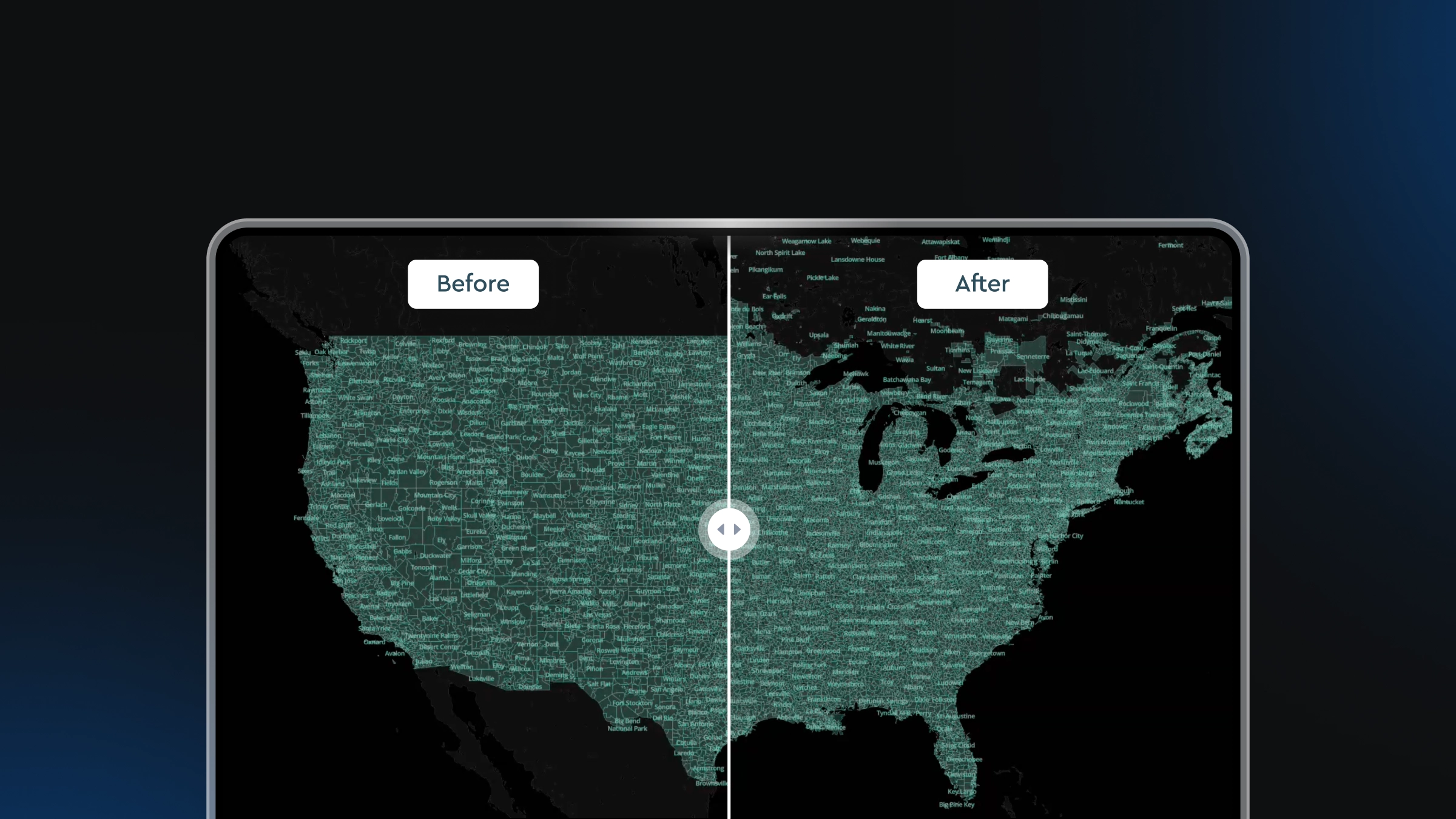
Drag, drop, edit, publish: A simplified workflow for custom data
The Data Workbench speeds up production of tilesets and maps.
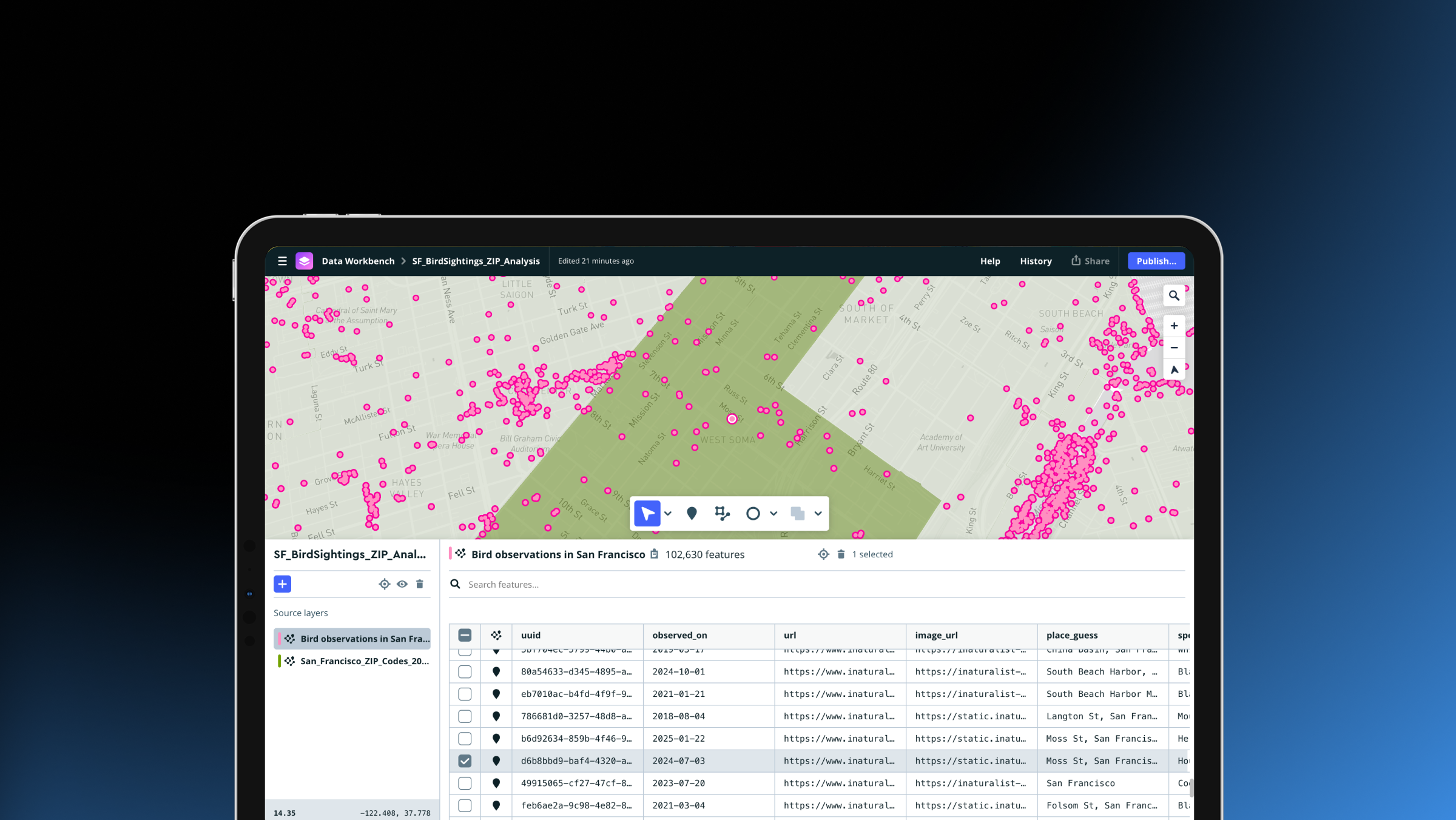
The Mapbox Data Workbench — now in General Availability — is a new way to upload, edit, and publish custom geospatial data on the Mapbox platform. The Data Workbench dramatically simplifies the process of bringing custom data to Mapbox, making it faster than ever to go from raw datasets to production-ready maps.
Whether building a logistics dashboard, real estate visualization, infrastructure planning tool, or custom mobility experience, the Data Workbench reduces the complexity and guesswork traditionally associated with tiling and publishing geospatial data.
A simpler way to bring custom data to Mapbox
While the Mapbox platform has always facilitated working with custom data, selecting the right tools and crafting efficient workflows required practice and experience with geospatial data. The Mapbox Tiling Service (MTS) is the most powerful and flexible option, however it required stitching together multiple tools and workflows. Developers needed to:
- Convert datasets into line-delimited GeoJSON
- Wait for tiling jobs to process before previewing results
- Export and re-import data for every change
- Repeatedly adjust tileset recipes through trial and error
The result was a fragmented workflow that slowed development and increased the risk of costly tiling mistakes. The Data Workbench changes that entirely. Developers now have a single visual workspace for uploading, previewing, editing, configuring, and publishing data — all inside the Mapbox Console, the central hub for managing a Mapbox account.
Drag, drop, and instantly preview custom data
Within the Data Workbench, upload common geospatial file formats directly into the browser, including: GeoJSON, CSV, KML, FlatGeobuf, TSV, and GPX.
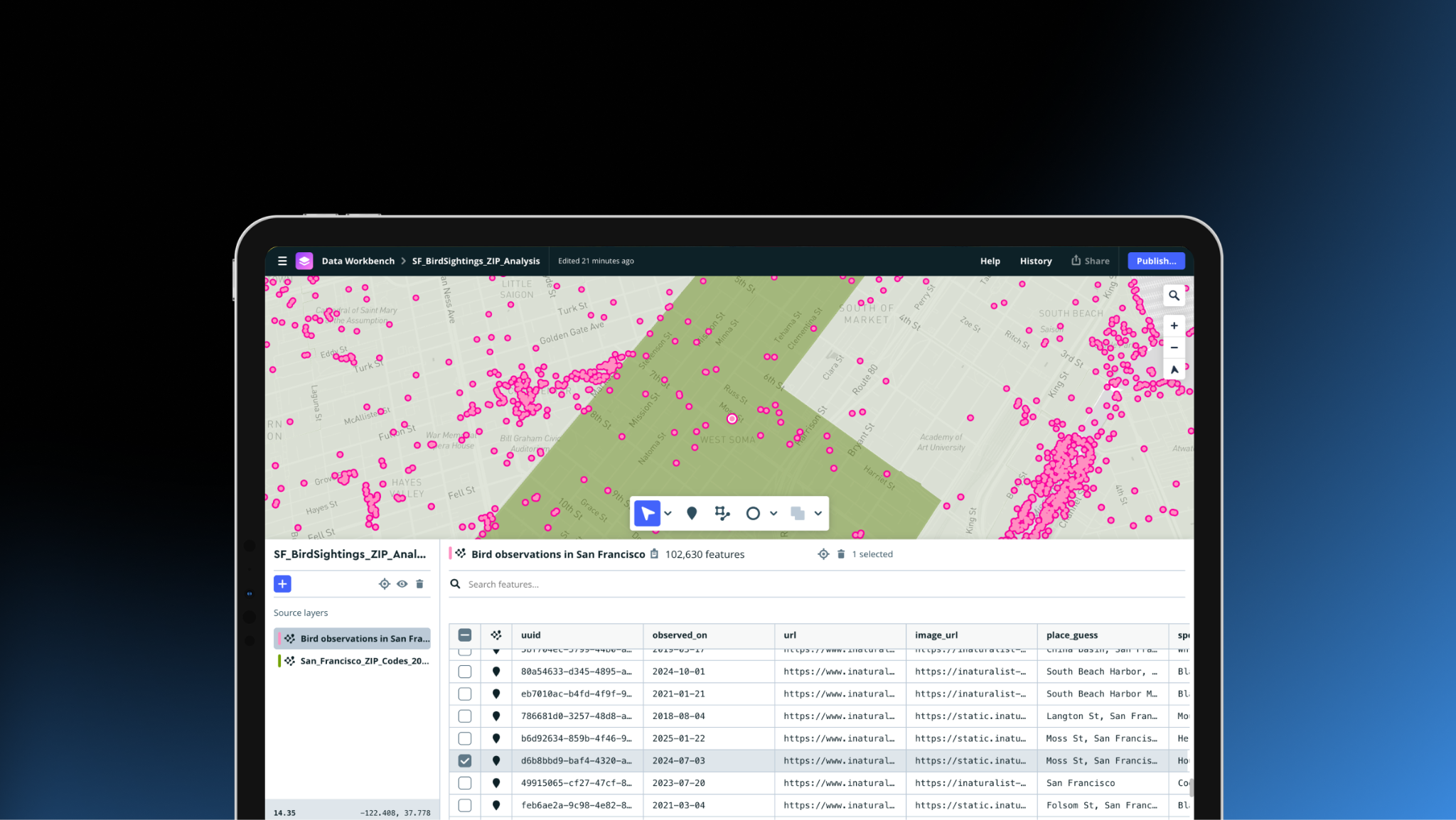
Once uploaded, data is immediately available to preview in both a map view and table — it’s not necessary to process a full tiling job to see the data.
Edit data directly within a map view
One of the most significant changes introduced with the Data Workbench is the ability to edit custom data directly within a map view workspace. Previously, data uploaded to Mapbox was read-only. Even small changes required editing data outside the platform and then re-uploading to Mapbox. Now, edits and updates are supported directly inside the Data Workbench.
Edit feature properties in a table view. Adjust point coordinates. Modify the geometry of lines and polygons directly on the map.
Configure tileset recipes visually
Under the hood, the Data Workbench uses Mapbox Tiling Service (MTS) ‘recipes’ to inform how it processes data into performant vector tilesets. A tileset recipe tells MTS how to transform source data into map tiles, including settings for zoom levels, geometry simplification, filtering, and aggregation. Recipes help transform gigabytes of source data into just kilobytes of data efficiently fetched at runtime.
Previously, developers had to manually configure MTS recipes in a command-line interface, relying on iterative testing, which risked configuration mistakes and unnecessary reprocessing costs. The Workbench presents a visual preview of a tileset where recipe changes can be experimented with in real time before initiating tileset processing.
Improved data uploads in Mapbox Studio
The launch of Data Workbench also improves the custom data workflow in Mapbox Studio. Developers can drag and drop data into a style to quickly visualize it in the Studio style editor, and can easily switch to the Data Workbench to manage the underlying data and its recipe.
Previously, custom datasets added within the Mapbox Studio style editor produced read-only tilesets with no control over how data was transformed. Starting today, all vector uploads within Mapbox Studio and the Mapbox Console are powered by MTS — giving fine control over tiling through recipes, plus the ability to edit source data directly.
Spatial Media uses the Data Workbench to accelerate data workflows
Spatial Media is an Australia-based 3D visualization company that builds interactive digital twins, infrastructure visualizations, and web-based mapping experiences for large-scale transportation, energy, and urban development projects. The team’s work helps governments, infrastructure operators, and communities better understand complex projects through immersive, data-rich maps and 3D experiences. Spatial Media was an early adopter of the Data Workbench because of how it optimizes workflows.
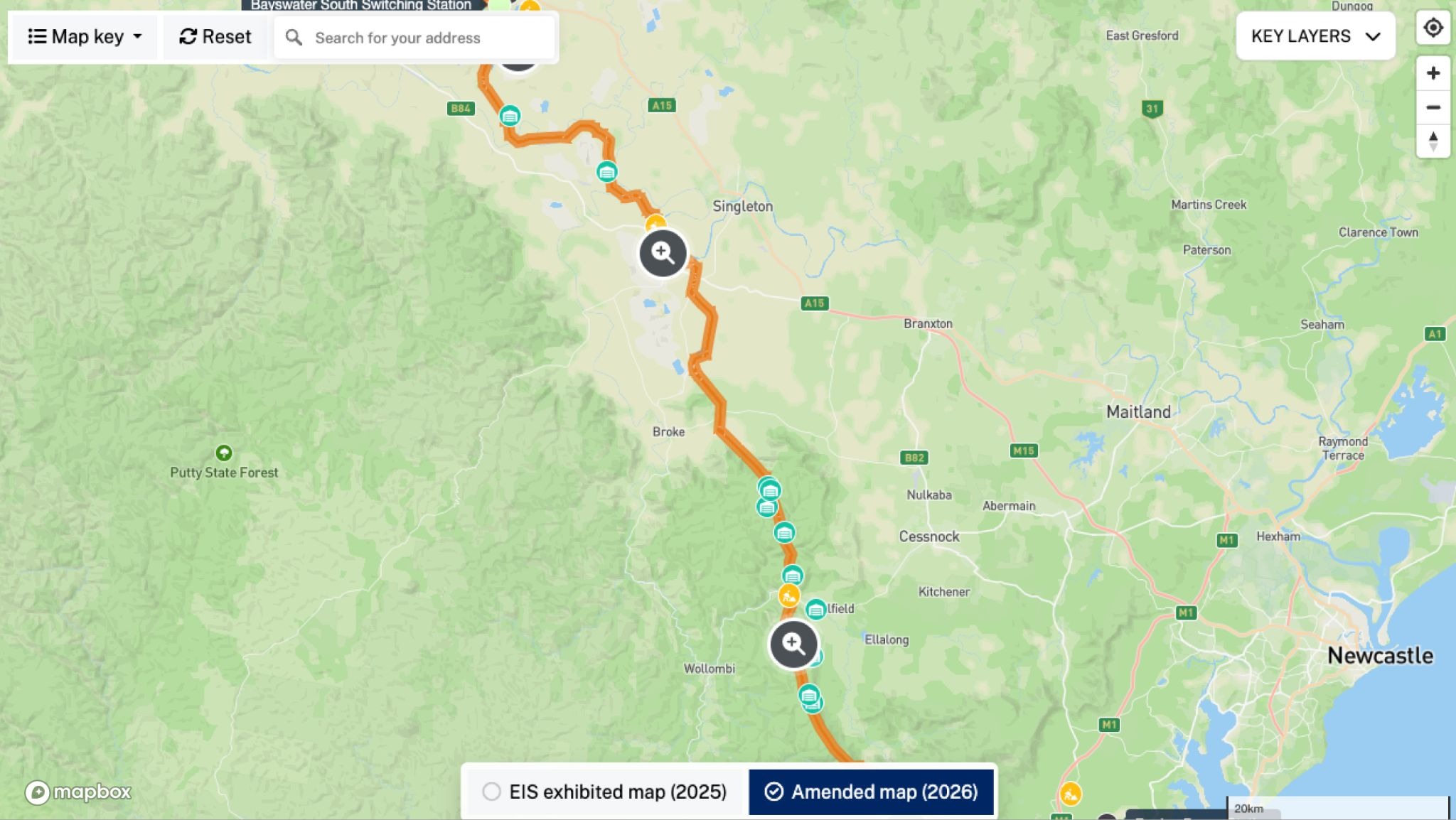
We work with massive, constantly changing infrastructure datasets, and the Data Workbench has fundamentally improved how quickly we can update and validate information before it goes live. What used to require full dataset re-uploads can now be handled directly in the workflow, saving our team significant time. — Phil James, UI/UX Designer and Geospatial Developer, Spatial Media
Get started with the Data Workbench
The Data Workbench is now available to all Mapbox customers. To get started, sign in to the Mapbox Console and select Data Workbench from the Tools sidebar. Read the Data Workbench guide in the Mapbox documentation for more information.
Uploading and previewing data in the Workbench is free. Only when data is processed into a tileset using MTS are charges incurred. See Tilesets pricing for more information.
FAQ
How does the Data Workbench work?
Drop in your files, edit the data, prepare the data for publishing by configuring the MTS recipe, and publish.
Here’s an example to illustrate this flow: Let’s say you’re trying to upload a 40 MB dataset with polygons showing California school districts for use in a real estate map. First, you navigate to the Data Workbench from the Tools section of the Console and drag-and-drop the dataset into the tool. You’ll see the data displayed on the map and in the table view. You can clean up the data as needed by removing unnecessary rows and columns that don’t need to be displayed on the map.
If you want to edit the district shapes directly, you can zoom into the map and adjust the vertices on the shape, without needing to re-process the entire dataset. Once you’re done with the changes, you can then publish as an MTS tileset with a custom recipe that defines how your source data is transformed into a tileset for performant loading. You can then style this tileset in the style editor.
What can I do now that I couldn’t do before?
The Data Workbench makes the process of bringing in your data, editing it, and publishing it as a tileset dramatically simpler. You can upload common formats like GeoJSON, CSV, KML, FlatGeobuf, and GPX—up to 300 MB per file—and instantly preview your data in a single UI before turning it into a tileset. No more converting files to line-delimited GeoJSON, waiting several minutes for processing before you see anything, or figuring out which of five Mapbox tools to use. You can make edits to your data, adjust the geometry of your line or polygon data, and visually configure your tiling recipe with changes reflected immediately. Previously, configuring tilesets was a trial-and-error process that often took hours with the risk of incurring a large bill from an incorrectly configured tileset. Now you can preview changes in real time before publishing, helping you catch issues early, speed up development, and get to a correct output faster with fewer mistakes.
What file formats does the Data Workbench support?
The Data Workbench currently supports GeoJSON, CSV, TSV, KML, FlatGeobuf, and GPX up to 300 MB each. Other file types, such as Shapefile, GeoTIFF (raster), and MBTiles, will continue to route to the legacy uploading experience.
How does the Data Workbench integrate with Mapbox Studio?
When you add vector data to a style, a Data Workbench project is automatically created where you can edit the underlying data and its tileset recipe. From inside a style, choose Select Data for a specific layer, then the Edit tileset button to open the source in the Data Workbench to make edits.
When publishing a style, you’ll need to ensure that any tilesets used in the style are published in the Data Workbench first. You'll see an option to view and publish any unpublished tilesets in the Data Workbench before publishing your style.
Can I use the Data Workbench programmatically?
Currently, the Data Workbench can only be used through the UI. We plan to add programmatic access later this year, allowing you to move from the Data Workbench into automated workflows and view programmatically-created tilesets in the Data Workbench.
What’s happening to the existing upload tools?
Previously, uploading a vector file in the Console would automatically publish a read-only tileset which was exempt from pricing. Going forward, uploading a file in a supported vector format (GeoJSON, CSV, TSV, KML, FlatGeobuf, and GPX) will create a project in the Data Workbench. You can edit the data and configure the MTS recipe before publishing, and published tilesets will be billed according to MTS pricing. The monthly MTS free tier of 20 CUs should comfortably cover developers who are evaluating or testing out MTS.
This change reflects our investment in MTS as our modern tiling solution. The legacy Uploads API is no longer actively maintained and we plan to deprecate it over time. Unsupported file types such as Shapefile, GeoTIFF, and MBTiles will continue to route through the legacy upload experience until support is added to the Data Workbench.
The Data Workbench also replaces the legacy Datasets Editor for creating and editing data. Existing legacy datasets will remain accessible and can still be opened and edited in the Datasets Editor, but you will no longer be able to create new legacy datasets. If you need a copy of an existing legacy dataset, you can duplicate it. We recommend switching to the Data Workbench which offers significantly improved editing capabilities, including a 300 MB per-file limit (up from 5 MB), support for more file formats, deeper editing with spatial operations, and a table editing UI.
How much does the Data Workbench cost?
Uploading data and previewing it in our tools remain free. Once you publish your data, we’ll process it into an MTS tileset that’s billed according to the MTS pricing model. The monthly MTS free tier of 20 CUs provides enough capacity for early prototyping or light production use.
When is the product available?
The Data Workbench is available to all customers from the Data Workbench tab in the Console.
How do customers get started?
You can get started by either dropping a file into the Data Workbench tab or inside a style.


Related articles
Expanding spatial intelligence in Tableau with Mapbox
Mission-ready mapping: Securely bring together maps, AI, and response